
Managing the macOS Share Menu for NCSC Cyber Essentials
Transitioning from legacy Restrictions to Blueprints
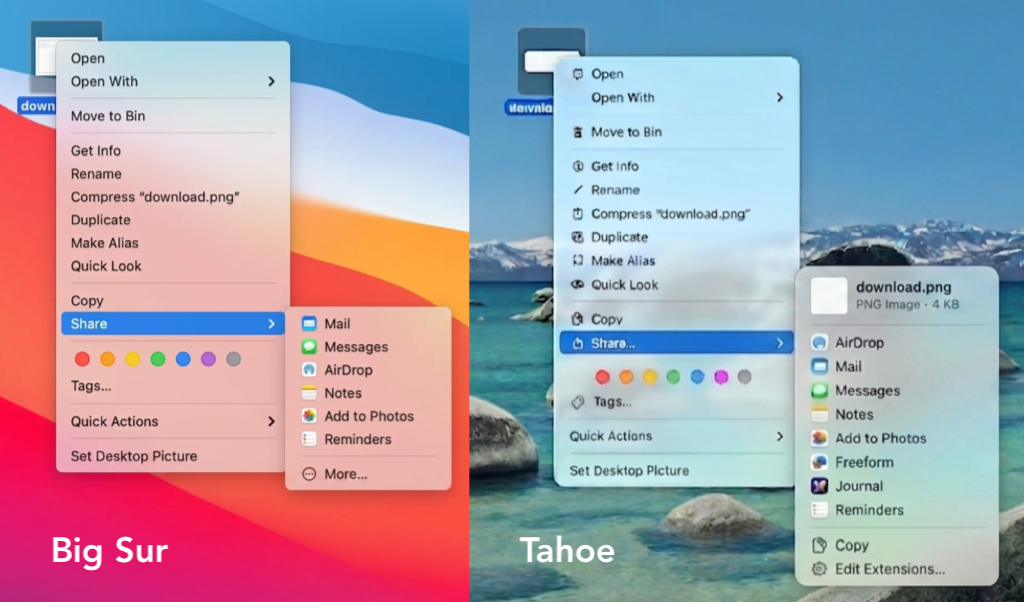
If you’re currently working through the UK NCSC Cyber Security Essentials guidance for your fleet, there’s a good chance you’ve been looking at how to restrict the macOS context menu. Specifically, we’re talking about managing what appears when a user right-clicks an item and opens the “Share…” submenu.
From a security perspective, the Share menu presents a quiet but important risk for data exfiltration. That’s why the NCSC guidance recommends locking it down by removing consumer platforms from the list. Specifically, their baseline configuration pack requires disabling AirDrop, Messages, Add to Aperture, Twitter, Facebook, LinkedIn, Video Services, Sina, and Weibo. You can check out the explicit requirements in the NCSC macOS Configuration Pack on GitHub.
For a long time, Jamf Pro admins handled this cleanly inside a standard Restrictions profile. However, while that baseline configuration pack originally targeted macOS 11 Big Sur, relying solely on it today will leave gaps on your modern macOS endpoints.
Let’s look at how we implemented this, what still works, and how to plug the holes using modern management tools.
The Legacy Method: The Restrictions Profile
Traditionally, navigating to the Sharing services tab within a Jamf Pro Restrictions profile allowed you to selectively check boxes to disable these platforms.
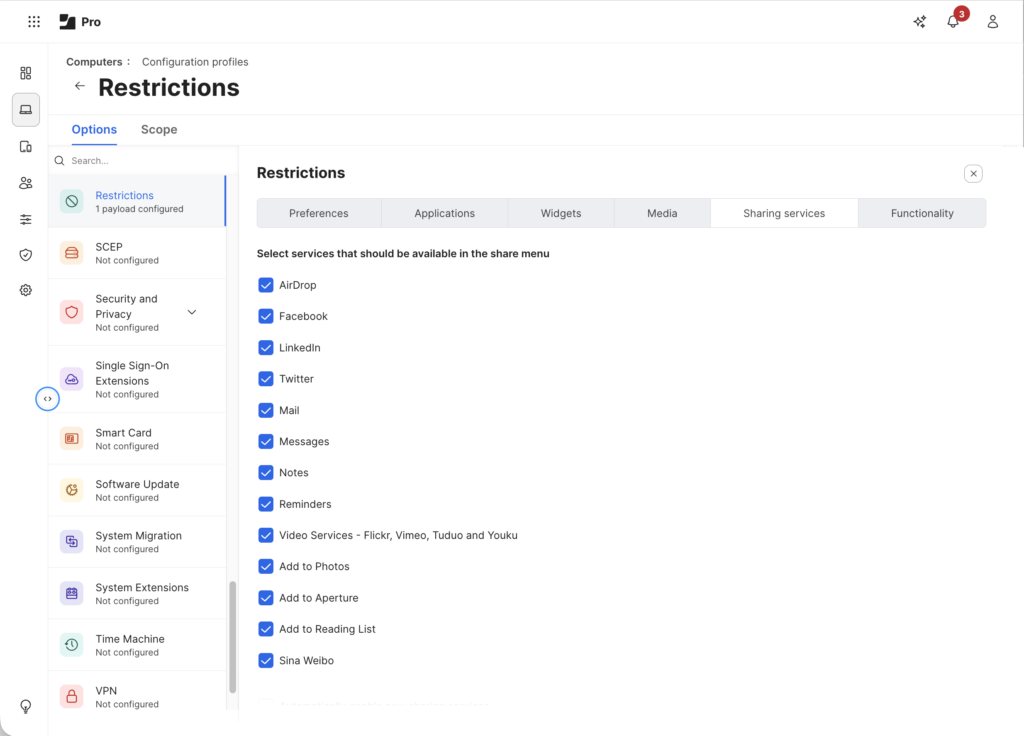
While Jamf Pro groups these options under the generalised “Restrictions” umbrella, it doesn’t actually leverage the standard com.apple.applicationaccess preference domain behind the scenes. Instead, these specific toggles write to the now-deprecated com.apple.ShareKitHelper domain.
For reference on how Apple originally structured this, you can look over the Apple Developer Documentation for ShareKit.
A raw configuration profile payload implementing these legacy restrictions looks something like this:
<?xml version="1.0" encoding="UTF-8"?>
<!DOCTYPE plist PUBLIC "-//Apple//DTD PLIST 1.0//EN" "http://www.apple.com/DTDs/PropertyList-1.0.dtd">
<plist version="1.0">
<dict>
	<key>PayloadContent</key>
	<array>
		<dict>
			<key>PayloadDisplayName</key>
			<string>ShareKit</string>
			<key>PayloadIdentifier</key>
			<string>com.apple.ShareKitHelper.39EF4293-67EF-484C-A589-0A7B455F58E8</string>
			<key>PayloadType</key>
			<string>com.apple.ShareKitHelper</string>
			<key>PayloadUUID</key>
			<string>39EF4293-67EF-484C-A589-0A7B455F58E8</string>
			<key>PayloadVersion</key>
			<integer>1</integer>
			<key>SHKDeniedShareServices</key>
			<array>
				<string>com.apple.share.AirDrop</string>
				<string>com.apple.share.Messages</string>
				<string>com.apple.share.addtoaperture</string>
				<string>com.apple.share.Twitter</string>
				<string>com.apple.share.Facebook</string>
				<string>com.apple.share.LinkedIn.post</string>
				<string>com.apple.share.Video</string>
				<string>com.apple.share.SinaWeibo</string>
			</array>
		</dict>
	</array>
	<key>PayloadDisplayName</key>
	<string>Untitled</string>
	<key>PayloadIdentifier</key>
	<string>88F766B5-D4ED-4293-B2C7-1FD2F8B521C2</string>
	<key>PayloadType</key>
	<string>Configuration</string>
	<key>PayloadUUID</key>
	<string>88F766B5-D4ED-4293-B2C7-1FD2F8B521C2</string>
	<key>PayloadVersion</key>
	<integer>1</integer>
</dict>
</plist>
The Catch with Modern macOS
If you push this profile to a modern macOS machine, it does still work for legacy items like AirDrop.
The problem is that it completely fails to cover any of the new native share menu options built into modern versions of the OS. Newer collaboration and native apps-like Freeform or Journal-ignore the legacy com.apple.ShareKitHelper domain entirely. If you only deploy the legacy profile, these extensions remain completely open to your users.
The Modern Fix: Jamf Blueprints & NSExtension Management
To properly lock down the modern Share Menu ecosystem, we need to target Apple’s current configuration framework using the NSExtension Management (com.apple.NSExtension) payload.
In newer iterations of Jamf Pro, this management paradigm shifts away from standard profile checkboxes and into Jamf Blueprints.
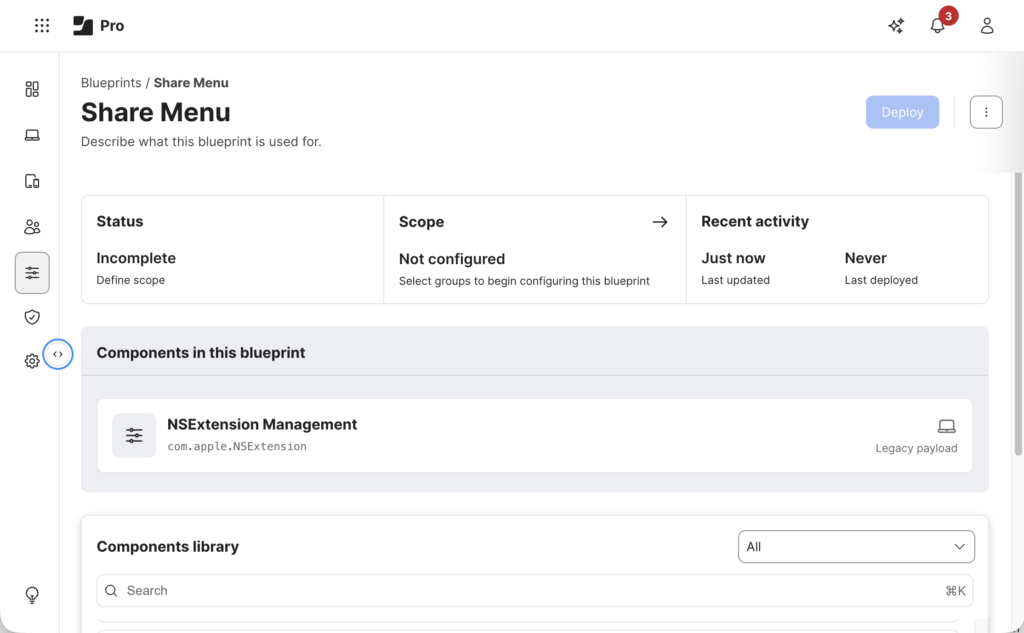
Step 1: Add the Component to Your Blueprint
Create or edit a Blueprint targeting your Mac fleet and include the NSExtension Management component from the library.
Step 2: Configure Denied Extensions
Inside the payload configuration, you will utilize the Denied extensions (DeniedExtensions) array. This tells the operating system exactly which application extension bundles are strictly prohibited from running.
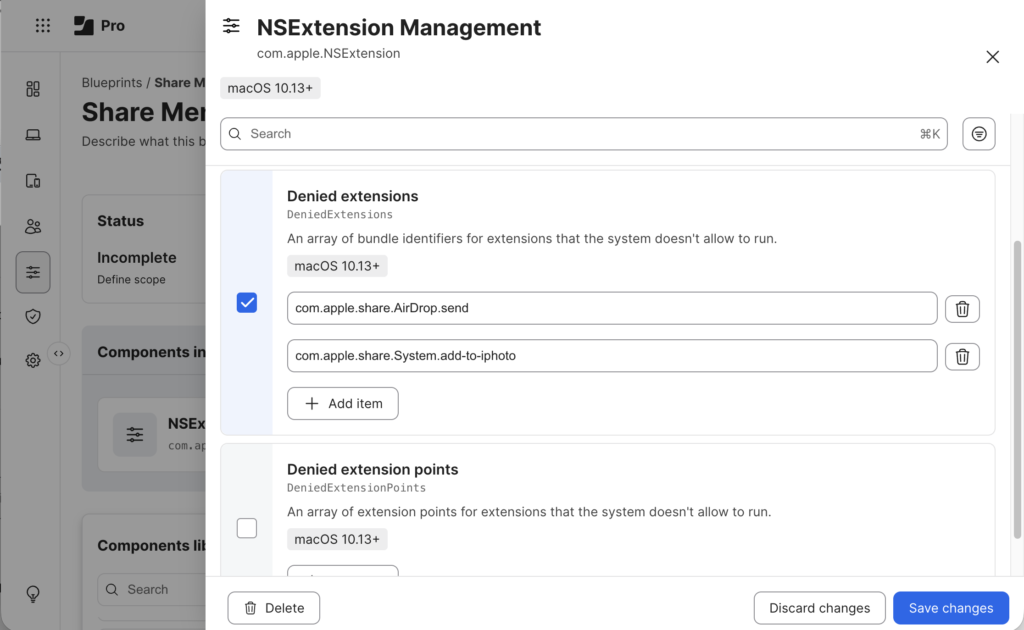
To achieve parity with NCSC requirements on modern OS versions, you can add explicit targets like:
- AirDrop: com.apple.share.AirDrop.send
- Add to Photos: com.apple.share.System.add-to-iphoto
How to Discover Other Sharing Bundle IDs
The NCSC guidelines provide an excellent compliance baseline, but your users likely have third-party apps or newer native features that add unapproved shortcuts to their context menus.
To audit exactly what extensions are registered on a live macOS device, run the following command in Terminal:
pluginkit -mAvvvThis outputs a comprehensive list of every registered plugin, its application path, and its exact bundle identifier. For instance, running this command reveals extensions such as:
- com.apple.share.Mail.compose (Native Mail sharing)
- com.apple.Notes.SharingExtension (Native Notes sharing)
- com.apple.freeform.sharingextension (Freeform sharing)
- com.apple.journal.JournalShareExtension (Journal sharing)
Simply copy the specific bundle identifier string (the text right before the version parentheses) and drop it directly into your Blueprint’s Denied extensions array to keep your fleet fully compliant and secure.
If you are working through Cyber Essentials compliance for your Apple fleet and need help implementing the right MDM policies, our team works with UK businesses through the full certification process.